Deploying a Rails 8 App to a VPS with Kamal 2: A Practical Guide
A start-to-finish walkthrough of shipping a Rails 8 app with Vite, Solid Queue and PostgreSQL to a single Ubuntu VPS using Kamal 2 and Docker Hub, including the errors you will probably hit and how to fix each one.
Also available in Português (Brasil)
Deploying a Rails 8 App to a VPS with Kamal 2: A Practical Guide
Kamal 2 ships with Rails 8 and turns a plain Linux server into a production host with zero-downtime deploys and automatic HTTPS. The happy path is short. The real path has a few traps: a stale deploy lock, a Dockerfile with no Node.js, a database host that silently resolves to localhost, and Let's Encrypt refusing to issue a certificate. This guide walks through the full setup and covers each of those.
All values in this post are placeholders. Replace them with your own:
- Server IP:
203.0.113.10 - Domains:
myblog.example.comandwww.myblog.example.com - SSH user:
deploy - Docker Hub user:
yourname - Kamal service name:
myblog
How Kamal 2 serves your app
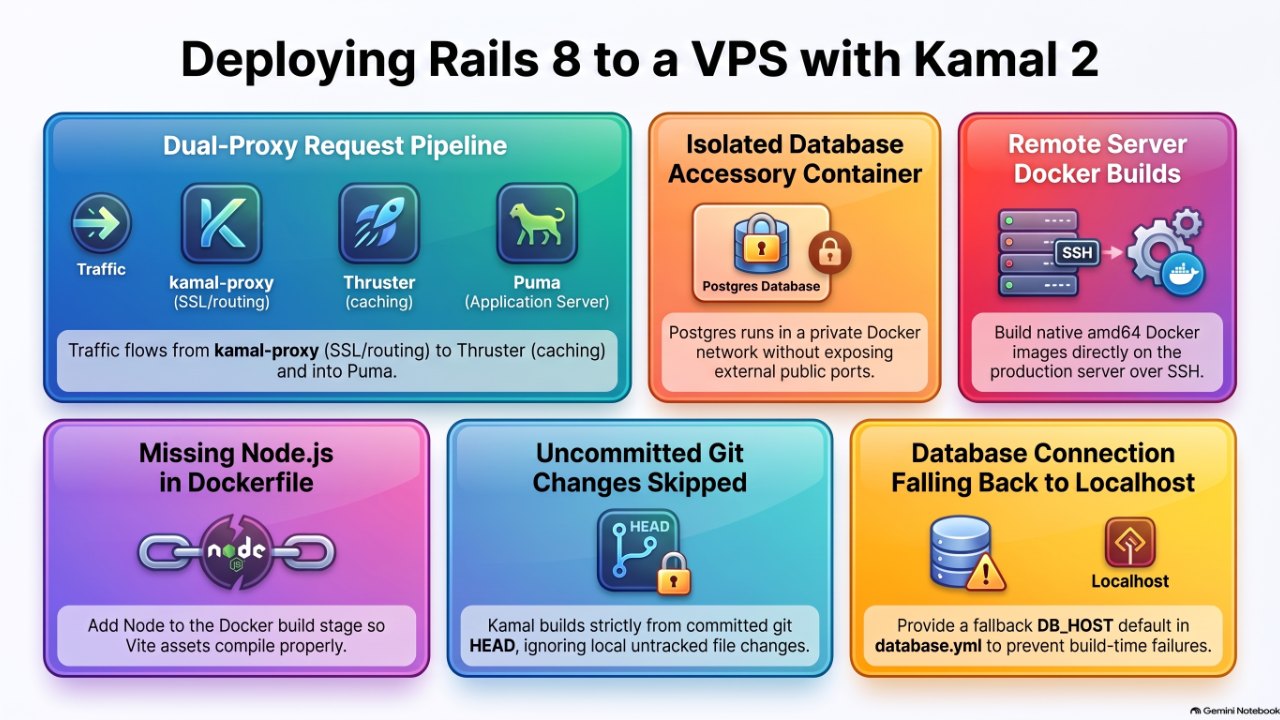
There is no nginx. A request travels through two small proxies before it reaches Puma:
client -> kamal-proxy (:80/:443 on the host) -> Thruster (:80 in the container) -> Puma
kamal-proxy handles TLS through Let's Encrypt, host-based routing and health-checked cutover between versions. Thruster, included in the Rails 8 image, handles compression and asset caching. You configure kamal-proxy through the proxy: block in config/deploy.yml, not through a config file on the server.
Prepare the server
Kamal needs SSH and Docker. Install your public key for the deploy user, then install Docker and add the user to the docker group. Kamal can only install Docker by itself when it connects as root.
# on your machine
ssh-copy-id -i ~/.ssh/id_rsa.pub deploy@203.0.113.10

# on the server
curl -fsSL https://get.docker.com | sudo sh
sudo usermod -aG docker deploy
sudo ufw allow OpenSSH && sudo ufw allow 80 && sudo ufw allow 443 && sudo ufw enable
Confirm key-based login works before going further. If SSH falls back to a password prompt, Kamal will hang there, because it cannot answer interactive prompts:
ssh -i ~/.ssh/id_rsa -o IdentitiesOnly=yes -o PasswordAuthentication=no deploy@203.0.113.10
If that fails, the usual causes are a key installed for root instead of the deploy user, or permissions on ~/.ssh that are too open (use 700 for the directory and 600 for authorized_keys).
Configure Docker Hub
Docker Hub is Kamal's default registry, so you only need a username and a token. Create a repository named myblog, then create a personal access token with Read & Write scope. That token is what Kamal calls KAMAL_REGISTRY_PASSWORD. On a Mac you can keep it in the keychain instead of your shell history:
security add-generic-password -a "$USER" -s dockerhub-kamal -w
The free Docker Hub tier allows one private repository. Avoid builder.cache.type: registry, which pushes a second cache repository.
Write config/deploy.yml
This configuration runs a web role and a Solid Queue job role, builds on the server itself (fast native amd64 builds, even from an Apple Silicon Mac) and runs PostgreSQL as a Kamal accessory:
service: myblog
image: yourname/myblog

servers:
  web:
    - 203.0.113.10
  job:
    hosts:
      - 203.0.113.10
    cmd: bin/jobs

proxy:
  ssl: true
  hosts:
    - myblog.example.com
    - www.myblog.example.com
  app_port: 80
  healthcheck:
    path: /up

registry:
  username: yourname          # no server key: defaults to Docker Hub
  password:
    - KAMAL_REGISTRY_PASSWORD

builder:
  arch: amd64
  remote: ssh://deploy@203.0.113.10

ssh:
  user: deploy
  keys: ["~/.ssh/id_rsa"]
  keys_only: true

env:
  clear:
    DB_HOST: myblog-db
    # Do NOT set SOLID_QUEUE_IN_PUMA here. See the note below.
  secret:
    - RAILS_MASTER_KEY
    - POSTGRES_PASSWORD

volumes:
  - "myblog_storage:/rails/storage"

asset_path: /rails/public/vite

logging:
  options:
    max-size: 100m

accessories:
  db:
    image: postgres:18
    host: 203.0.113.10
    env:
      clear:
        POSTGRES_USER: myblog
        POSTGRES_DB: myblog_production
      secret:
        - POSTGRES_PASSWORD
    volumes:
      - "myblog_pgdata:/var/lib/postgresql"
    options:
      shm-size: 256m

aliases:
  console: app exec --interactive --reuse "bin/rails console"
  logs: app logs -f
  dbc: app exec --interactive --reuse "bin/rails dbconsole"
A few choices worth explaining:
- The accessory has no
portentry, so PostgreSQL is reachable only from containers on thekamalDocker network, by the namemyblog-db. Nothing is exposed to the internet. - The official
postgres:18image expects the volume on/var/lib/postgresql, not the older/var/lib/postgresql/data. - The logging cap prevents container logs from filling the disk.
asset_pathpoints at Vite's output so in-flight requests do not 404 on old bundles during a deploy.- Remove
SOLID_QUEUE_IN_PUMAentirely when you have a dedicatedjobrole. The Rails 8config/puma.rbchecksif ENV["SOLID_QUEUE_IN_PUMA"], and the string"false"is truthy in Ruby. Setting it tofalseturns the Puma plugin on, so you end up with a second Solid Queue supervisor running inside every web container. - Building on the production host is convenient on a single box, but the build competes with the running app for CPU and memory. On a small VPS, consider a separate build machine or CI.
Keep secrets out of git
env.secret lists names. .kamal/secrets maps those names to values, and it should read them from somewhere else rather than holding them literally:
KAMAL_REGISTRY_PASSWORD=$(security find-generic-password -a "$USER" -s dockerhub-kamal -w)
RAILS_MASTER_KEY=$(cat config/master.key)
POSTGRES_PASSWORD=$POSTGRES_PASSWORD   # exported in your shell, or read from a password manager
Keep application secrets such as API keys in Rails credentials, so the only app secret Kamal handles is RAILS_MASTER_KEY. Reserve .kamal/secrets for infrastructure values like the registry token and the database password.
Point database.yml at the accessory
The default production block has no host, which makes the PostgreSQL client fall back to localhost. Inside a container, localhost is the container itself, so the app fails with connection to server at ::1, port 5432 failed. Read the host from the environment, with a default:
production:
  primary: &primary_production
    <<: *default
    host: <%= ENV.fetch("DB_HOST", "myblog-db") %>
    port: 5432
    database: myblog_production
    username: myblog
    password: <%= ENV["POSTGRES_PASSWORD"] %>
  cache:
    <<: *primary_production
    database: myblog_production_cache
    migrations_paths: db/cache_migrate
  queue:
    <<: *primary_production
    database: myblog_production_queue
    migrations_paths: db/queue_migrate
  cable:
    <<: *primary_production
    database: myblog_production_cable
    migrations_paths: db/cable_migrate
The default value matters. ENV.fetch("DB_HOST") without one raises a KeyError during the image build, because assets:precompile loads Rake, Rake renders database.yml, and DB_HOST only exists at runtime.
Add Node.js to the Dockerfile for Vite
The Dockerfile Rails generates has no Node.js. If your app uses Vite Ruby, assets:precompile fails with No such file or directory - npx. Add Node to the build stage only, so the final image stays small:
ARG NODE_VERSION=24
FROM docker.io/library/node:${NODE_VERSION}-slim AS node

# ... base stage unchanged ...

FROM base AS build
# ... apt packages, as generated ...

COPY --from=node /usr/local/bin/node /usr/local/bin/node
COPY --from=node /usr/local/lib/node_modules /usr/local/lib/node_modules
RUN ln -s ../lib/node_modules/npm/bin/npm-cli.js /usr/local/bin/npm && \
    ln -s ../lib/node_modules/npm/bin/npx-cli.js /usr/local/bin/npx

# ... bundle install, as generated ...

COPY package.json package-lock.json ./
RUN npm ci --include=dev

COPY . .
RUN bundle exec bootsnap precompile -j 1 app/ lib/

RUN SECRET_KEY_BASE_DUMMY=1 VITE_RUBY_SKIP_ASSETS_PRECOMPILE_INSTALL=true \
    ./bin/rails assets:precompile && rm -rf node_modules
--include=dev is needed because vite and vite-plugin-ruby are usually dev dependencies. Removing node_modules at the end keeps it out of the runtime image. Also add /node_modules/ and /public/vite* to .dockerignore, so the macOS binaries in your local node_modules never reach a Linux build.
Commit before you deploy
This one costs people the most time. Kamal 2 builds from a clean checkout of your committed HEAD, not from your working directory, and it tags each image with the commit SHA. If you edit the Dockerfile or database.yml and deploy without committing, Kamal builds the old code again and you see the same error as before. If a deploy fails with an identical message after a fix, check git status first.
Deploy
kamal registry login      # checks Docker Hub auth locally and on the server
kamal accessory boot db
kamal accessory logs db   # wait for "ready to accept connections"
kamal setup               # first deploy
kamal deploy              # every deploy after that
On boot, the Rails 8 entrypoint runs db:prepare, which creates the cache, queue and cable databases and loads their schemas. Kamal then waits for /up to return 200 before it switches traffic to the new container.
Troubleshooting the errors you are likely to see
mkdir: .kamal/lock-myblog: File exists. An earlier run was interrupted and left its deploy lock. Check that no other deploy is running, then:
kamal lock status
kamal lock release
could not translate host name "myblog-db". The accessory is not running, and kamal accessory details db shows an empty list. Boot it and check that the app container can resolve it:
kamal accessory boot db
kamal app exec --roles=web 'getent hosts myblog-db'
open .kamal/apps/myblog/env/roles/job.env: no such file or directory. This one is harmless. A role's env file is written on its first successful boot, so one-off commands fail for the job role until then. Add --roles=web to the command.
target failed to become healthy within configured timeout. The container started but /up never returned 200. Read kamal app logs. It is almost always the database connection or a missing RAILS_MASTER_KEY.
Move your development data to production
Take a snapshot of production first, stop the app, then stream a custom-format dump straight into the accessory container:
kamal app stop

pg_dump -Fc --no-owner --no-acl -d myblog_development \
  | ssh deploy@203.0.113.10 'docker exec -i myblog-db pg_restore -U myblog \
      -d myblog_production --clean --if-exists --no-owner --no-acl'
The dump carries environment = development in ar_internal_metadata, which makes later database tasks refuse to run. Fix it, then boot the app and check the data:
ssh deploy@203.0.113.10 "docker exec myblog-db psql -U myblog -d myblog_production \
  -c \"UPDATE ar_internal_metadata SET value = 'production' WHERE key = 'environment';\""

kamal app boot
ssh -t deploy@203.0.113.10 'docker exec -it myblog-db psql -U myblog -d myblog_production \
  -c "SELECT count(*) FROM posts;"'
The dump moves Active Storage records but not the files themselves. Copy uploaded files separately, or move Active Storage to S3.
HTTPS with Let's Encrypt
With ssl: true and both hosts listed, kamal-proxy requests a certificate on the first HTTPS request for each name. It only works when both names already resolve to your server and port 80 is open. At your DNS provider, create:
- An
Arecord formyblog.example.compointing to203.0.113.10 - An
Arecord forwww.myblog.example.compointing to203.0.113.10
Remove any AAAA records unless your server has working IPv6, because Let's Encrypt prefers IPv6 when it validates. If you use Cloudflare, keep the records as DNS only until the certificates are issued. Check from public resolvers, not your local cache:
dig @1.1.1.1 +short myblog.example.com A
dig @1.1.1.1 +short myblog.example.com AAAA   # should be empty
curl -vI https://myblog.example.com 2>&1 | grep -i issuer
Two log messages are easy to misread. No server name; using default TLS hostname followed by acme/autocert: missing certificate comes from bots connecting to the bare IP without SNI. That is noise. no viable challenge type found is a real failure: Let's Encrypt could not reach your server for that name, usually because DNS still points somewhere else. Fix DNS first, then run kamal proxy reboot to clear the cached failure. Let's Encrypt allows only 5 failed validations per hostname per hour, so do not retry blindly.
kamal-proxy serves both names but does not redirect between them. Add the redirect at the top of config/routes.rb:
constraints(host: "www.myblog.example.com") do
  get "(*path)", to: redirect { |_, req| "https://myblog.example.com#{req.fullpath}" }, status: 301
end
What Kamal does not do for you
- Backups. The database accessory has none. At minimum, schedule a nightly
pg_dumpto S3. For point-in-time recovery, use WAL-G or pgBackRest. - High availability. One server means a hardware failure is downtime. For anything revenue-bearing, a managed database such as RDS is worth the cost.
- PostgreSQL major upgrades. Moving from 18 to 19 requires a dump and restore, not an image tag change. Pin the major version and never use
latest. - Observability. Ship logs to a log service and add an APM agent through environment variables.
Wrapping up
Once it works, the daily loop is a commit followed by kamal deploy. Most of the setup time goes to four issues: Node missing from the Dockerfile, the database host defaulting to localhost, uncommitted changes, and DNS that is not ready for Let's Encrypt. Check those first and a first deploy takes well under an hour.
Comments
Sign in with GitHub to comment.
No comments yet.